

Summary
18 items · 5–15 minutes per new app install
Why Permissions Deserve More Than a Quick Tap
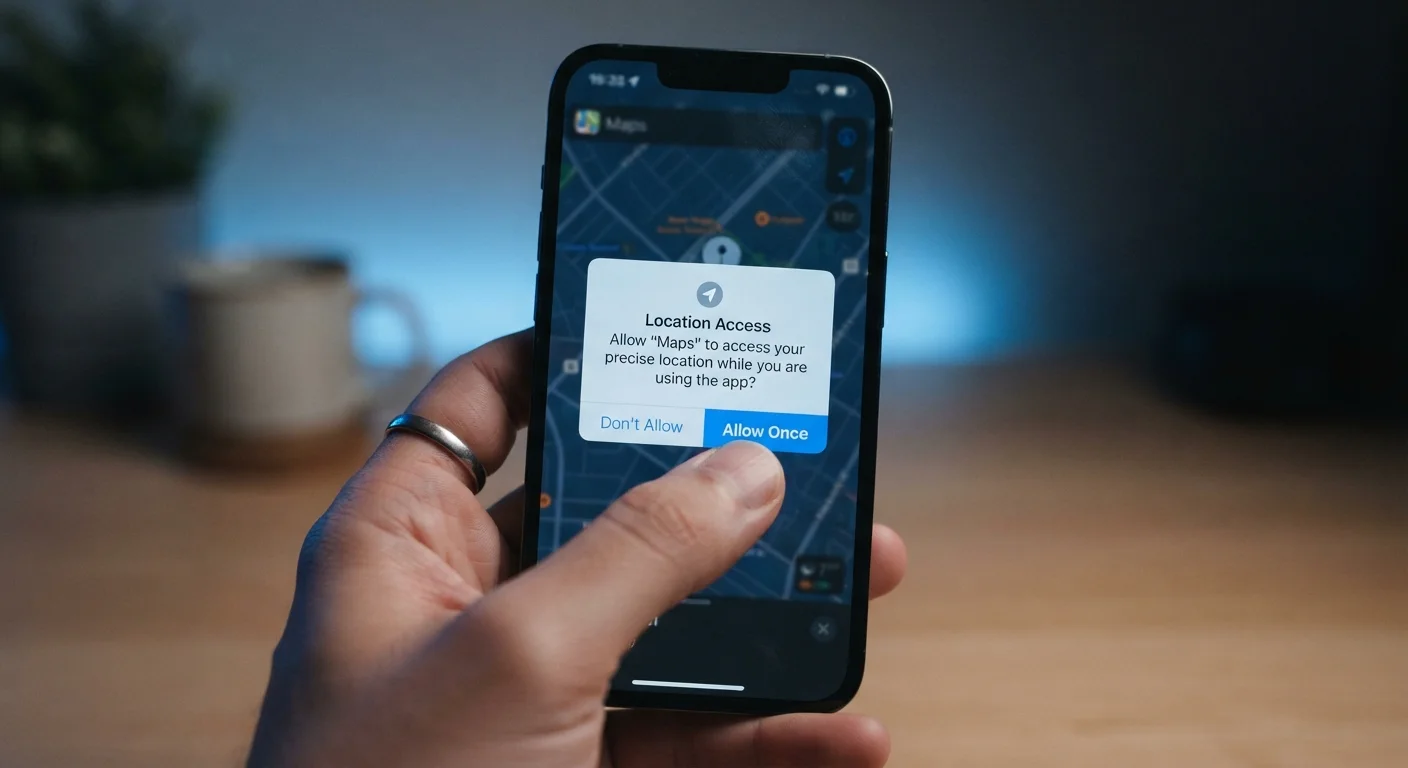
Most people tap Allow without reading the prompt. It's understandable — you just downloaded an app and you want to use it now. But each permission you grant is a data access agreement with real consequences. An app that reads your contacts can map your social network. An app with background location access can build a detailed picture of where you live, work, and travel.
This checklist is designed to slow that moment down. It takes only a few minutes and applies every time you install something new — whether a utility, a game, or a productivity tool. Understanding what's native versus web-based also matters here; see our explainer on native apps vs. web apps — native apps in particular have broader access to device hardware and sensors.
Once Granted, Permissions Work Silently
Unlike a one-time consent form, an app permission remains active until you manually revoke it — even after you stop using the app regularly. Some permissions, such as background location or microphone access, can operate without any visible indicator on older OS versions. Always assume a granted permission is in use.
Tools You'll Need
No third-party software is required. Everything you need is already on your device.
Device Settings (iOS or Android)
Used to review and revoke app permissions at any time after installation.
Official App Store (Google Play or Apple App Store)
The authoritative source for checking developer details, update history, and user reviews before downloading.
Password Manager
Generates and stores unique, strong passwords so you don't reuse credentials across app accounts.
Email Alias Service
Creates a forwarding address to protect your primary email when signing up for new apps.
The Checklist
Work through these groups in order. The first two groups — Before You Download and At the Permission Prompts — are the most time-sensitive. The final group covers an ongoing habit worth building once the app is installed.
Before You Download
At the Permission Prompts
Data and Account Setup
Ongoing Permission Hygiene
Reading the Red Flags
The single most useful heuristic: does this permission make sense for what the app actually does? A flashlight app requesting microphone access has no defensible reason for that permission. A navigation app requesting location access does. When you cannot construct a plausible reason why an app needs a given resource, treat it as a red flag and either deny the permission or reconsider the install entirely.
Permissions granted once can be revisited. On Android, go to Settings > Privacy > Permission Manager. On iOS, go to Settings > Privacy & Security. Both interfaces let you see which apps hold which permissions and revoke access with a single tap. Make this review a periodic habit — apps can quietly update their permission requests over time.
Revoking a Permission Can Break App Features
Removing a permission after the fact may disable certain app functions — for example, revoking camera access will prevent in-app photo capture. This is expected behavior, not a malfunction. You can re-grant the permission at any time from Settings if you decide the feature is worth the access trade-off.
The content on this site is for informational purposes only and is not a substitute for professional advice. Always consult a qualified professional for guidance specific to your situation.