

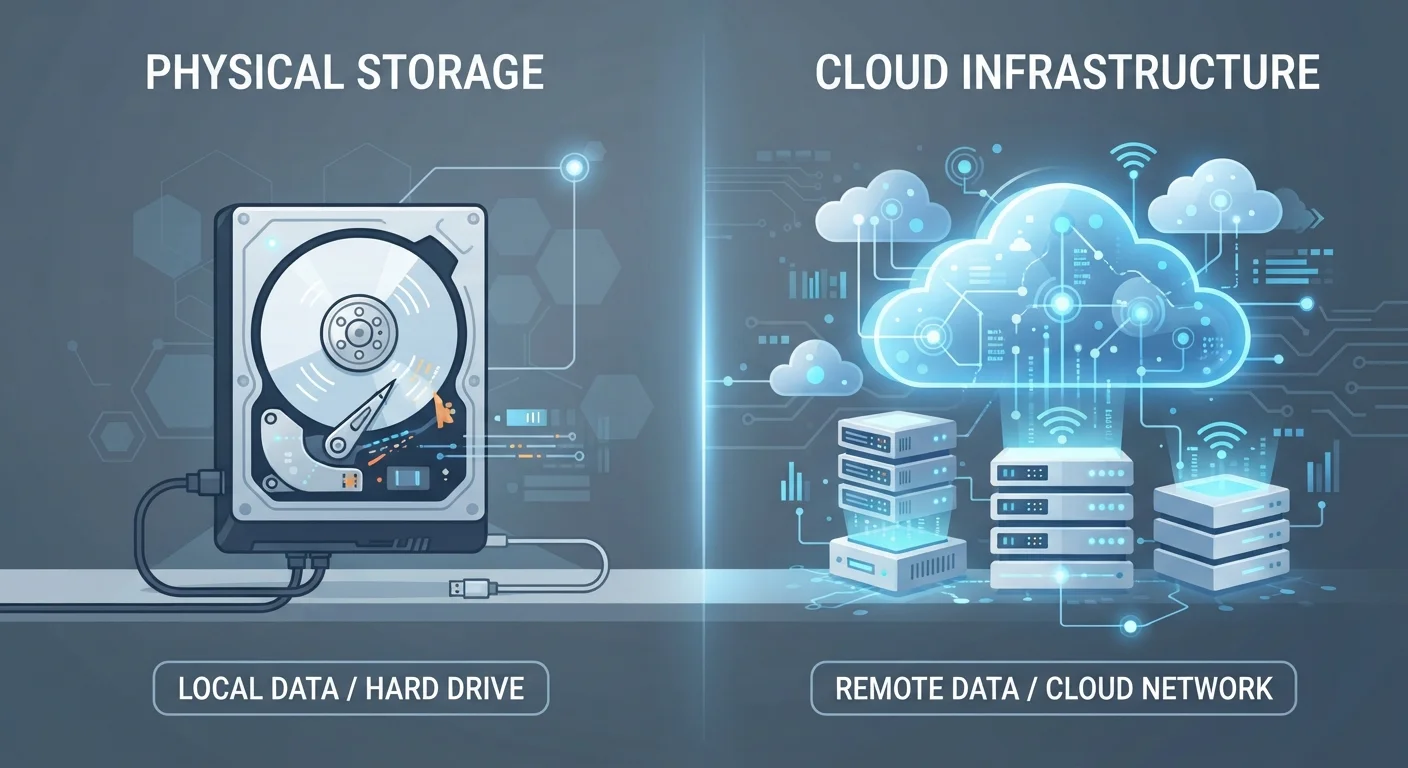
Option A
Local Storage
The physical, on-device approach to keeping your files.
Best for: Users who need offline access, fast performance, and full control over their data without depending on an internet connection.
Option B
Cloud Storage
The networked, remote approach to storing and accessing files.
Best for: Users who work across multiple devices, share files with others, or want off-site backup without managing physical hardware.
What Local Storage Actually Means
When you save a document, photo, or video to your device, it gets written to a physical storage medium — typically a hard disk drive (HDD) or a solid-state drive (SSD). Both store data as magnetic or electronic signals on hardware that lives inside your computer, phone, or an external drive plugged into it.
The critical characteristic of local storage is that the data is physically present on a device you possess. No internet connection is needed to open a file; the machine reads it directly from the hardware. Speed is generally high — your laptop isn't waiting for a signal to travel across the country before it can open a spreadsheet.
The trade-off is that your files exist in one place. If that drive fails, is lost, or is stolen, the data goes with it unless you've made a separate copy. Local storage also doesn't scale infinitely — at some point, a drive fills up and you need to either delete files or add more hardware. See our explainer on RAM vs. storage to understand how storage fits alongside other memory in your device.
What Cloud Storage Actually Means
Cloud storage is a marketing-friendly term for a straightforward concept: your files are saved on servers owned and operated by a company, and you access them over the internet. When you upload a photo to a cloud service, it travels from your device across the internet to a data center — a large facility full of servers — where it's stored and managed on your behalf.
"The cloud" isn't a mystical location; it's someone else's computer. Those servers are typically distributed across multiple physical locations so that if one facility has a problem, your files remain accessible from another. This built-in redundancy is one of cloud storage's strongest practical advantages.
The dependency is equally clear: without an internet connection, you generally can't reach your files. Some cloud apps offer a limited offline mode by keeping a local copy temporarily, but that's a supplement, not a substitute. Understanding this connection dependency is foundational — for more on how your connection functions, explore the Internet & Connectivity hub.
| Criterion | Local Storage | Cloud Storage |
|---|---|---|
| Physical location | Hardware you own | Third-party data center |
| Internet required | No | Yes (typically) |
| Access across devices | Manual transfer needed | Automatic sync |
| Failure risk | Hardware damage or loss | Service outage or shutdown |
| Data privacy control | Full — no third party | Governed by provider terms |
| Upfront cost | Hardware purchase | Often free tier, then subscription |
| Sharing files with others | Requires manual effort | Built-in sharing features |
Privacy, Ownership, and Trust
One of the most substantive differences between these two approaches isn't technical — it's about trust and control. When files sit on your local drive, you decide who can access them. When they sit on a cloud provider's servers, you're operating under the terms of a service agreement that may allow the provider to scan, analyze, or share your data in ways that aren't immediately obvious.
This doesn't mean cloud storage is inherently unsafe, but it does mean the privacy implications are worth reading carefully. Reputable providers use strong encryption both during file transfer and while files are at rest on their servers. However, in most mainstream services, the provider holds the encryption keys — meaning they can technically access your files if legally compelled to do so.
If data privacy is a particular concern — for sensitive documents, for example — it's worth understanding these distinctions before choosing a provider. Our guide to digital privacy covers the foundational concepts in accessible terms.
Why Most People Use Both
The most practical answer for most consumers isn't "cloud or local" — it's a deliberate combination of both. A common and sensible approach is to keep actively used files synced to the cloud for cross-device access, while maintaining a local copy on an external drive as a backup that doesn't depend on any service remaining available.
This matters because cloud storage services can change: pricing models shift, free tiers shrink, and in rare cases services shut down entirely. A local backup means you're never entirely dependent on a third-party provider's continued operation.
When your cloud service syncs files across your phone and laptop, it's doing more behind the scenes than simply copying files. Our article on how syncing actually works explains the quiet chain of processes responsible for keeping devices in step with each other.
The 3-2-1 Backup Rule, Briefly Explained
A widely referenced data backup principle suggests keeping 3 copies of your files: 2 on different local storage media (such as your device and an external drive), and 1 stored offsite — which cloud storage fulfills naturally. No single approach provides complete protection; redundancy across both local and cloud storage is what creates genuine resilience.
The content on this site is for informational purposes only and is not a substitute for professional advice. Always consult a qualified professional for guidance specific to your situation.