

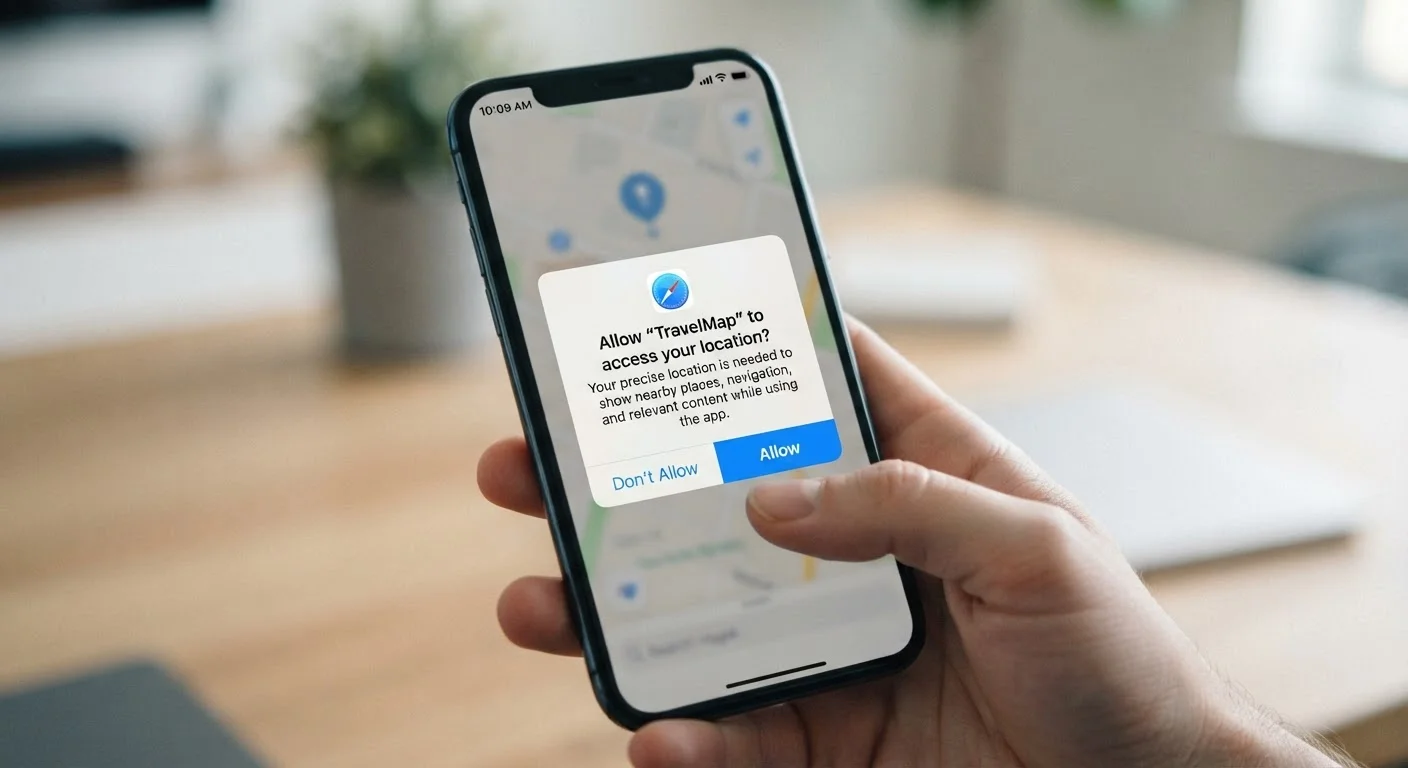
What Permissions Actually Control
When an app requests a permission, it's asking to cross a boundary your device has drawn by default. Without your approval, an app cannot read your contacts, know your GPS coordinates, take photos, or listen through the microphone. The operating system enforces these boundaries — it's not up to the app developer to be honorable about it.
Permissions generally fall into two tiers. Normal permissions cover low-risk actions, like accessing the internet or checking network status, and are typically granted automatically. Sensitive permissions — those touching your location, camera, microphone, contacts, or storage — require your explicit approval because they involve personal data or hardware with real privacy implications.
Understanding what each category actually touches helps you evaluate requests more clearly. Location, for instance, isn't just about maps: precise GPS data can reveal where you live, work, worship, and seek medical care. Contacts expose not just your data, but your social network's.
Why Apps Ask for More Than They Seem to Need
There are two broad reasons an app requests a particular permission: functional necessity and business interest. A navigation app needs your location to give directions — that's straightforward. A free game asking for your contacts or precise location is a different matter.
Audit Your Permissions Periodically
Set a reminder every few months to open your device's Privacy settings and scroll through which apps hold which permissions. You may find apps you rarely use still holding location or microphone access. Revoking unused permissions is a low-effort way to reduce your exposure without uninstalling anything.
The business model behind many free apps shapes their permission requests. As explored in the trade-offs behind no-cost apps, when an app costs nothing to download, advertising revenue or data licensing often funds development. Broad permissions support that model: access to your location, contacts, and usage patterns can feed behavioral profiles used in targeted advertising.
Developers also sometimes request permissions speculatively — adding them "just in case" a planned feature requires it later, or copying permission lists from templates without auditing them. The result is apps carrying access they never actually invoke. This is worth keeping in mind: the presence of a permission request doesn't always indicate active use.
How the Permission Systems on Android and iOS Differ
Both major mobile platforms use runtime permissions — meaning apps ask at the moment a feature is first needed, rather than demanding everything upfront at install. But the two systems have meaningful differences in granularity and defaults.
iOS has historically offered tighter defaults. Apps must ask before accessing almost any sensitive resource, and since iOS 14, the system has added features like approximate location (sharing a general area instead of precise coordinates) and the App Tracking Transparency prompt, which requires apps to request permission before tracking you across other companies' apps and websites.
Android offers comparable runtime prompts and has expanded its privacy controls significantly in recent versions, including one-time permissions and auto-reset for permissions on apps you haven't used in a while. The openness of the Android ecosystem does mean that app store review processes can vary, so the source of an app matters.
On both platforms, you can review and revoke permissions through the Privacy settings menu — and doing so periodically is a practical habit. For a broader grounding in how to think about your digital footprint, this consumer's starting point for digital privacy offers useful context.
45%
Apps requesting more permissions than needed
Research from privacy analysis firms has consistently found that a significant share of mobile apps request permissions not required by their core features, often linked to third-party advertising or analytics SDKs embedded in the app.
3 in 4
Users who rarely review app permissions
Surveys on mobile privacy behavior suggest that most smartphone users have never audited which apps hold which permissions on their device, despite settings being accessible in a few taps.
~80%
Reduction in location data shared via 'Approximate' option
Choosing approximate rather than precise location typically reduces the geographic resolution shared with an app from a few meters to roughly a city-block or neighborhood radius, significantly limiting tracking granularity.
Making Smarter Decisions at the Prompt
The permission dialog appears at an inconvenient moment — usually when you're trying to use the app for the first time and just want it to work. That friction is worth resisting briefly. A few questions help:
- Does this permission match the feature I'm using right now? A photo-editing app asking for camera access makes sense. The same app asking for your contacts does not.
- What's the minimum access that would still make this feature work? Choose approximate location over precise when given the option; choose 'While Using' over 'Always' for anything that doesn't need background access.
- Can I grant this later? On both platforms, you can deny a permission now and grant it later in settings if you find you need it.
For a structured approach you can apply each time you install something new, this quick checklist for new app installs walks through the key questions. It's also worth knowing that permissions can shift with app updates — what actually changes during an update explains why new access requests sometimes appear alongside new features.
Frequently Asked Questions
Usually yes, at least partially. Denying location access to a food delivery app won't stop it from working — you'll just need to type your address manually. Some features genuinely require a specific permission to function, but many apps work fine with access denied.
It depends on the app's purpose and reputation. A voice-assistant or video-calling app has a clear, legitimate need for the microphone. A flashlight or simple game app does not. When the use case isn't obvious, that's a reason to pause before granting access.
On both Android and iOS, go to your device's Settings, find the Privacy or Permissions section, and you can view all permissions by category or by app. From there, you can toggle off any access you no longer want to give.
New features added in an update may genuinely require new device access. However, it's also worth noting that app updates can introduce new data-collection practices. If a new permission request seems unrelated to visible new features, check the update notes for context.
'Allow Once' grants access only for the current session; the app must ask again next time. 'Allow While Using the App' grants access whenever the app is actively open. Both are more privacy-preserving than 'Always Allow,' which permits background access even when you're not using the app.
Web apps request permissions through your browser rather than the operating system, and they generally have access to fewer device features by default. The experience differs depending on whether it's a standard website or a progressive web app.
The content on this site is for informational purposes only and is not a substitute for professional advice. Always consult a qualified professional for guidance specific to your situation.