

Start here
Why Understanding Laptop Internals Matters
Core concepts
The Processor (CPU): The Brain of the Operation
Next
RAM and Storage: Memory vs. Space
Going deeper
The Display: What You Actually Stare At
Finish strong
GPU, Battery, and the Parts That Tie It Together
Why Understanding Laptop Internals Matters
Spec sheets exist to communicate what a laptop can do — but they assume the reader already speaks the language. Terms like DDR5 RAM, NVMe SSD, and TDP appear on product pages without explanation, leaving many buyers choosing between guessing and trusting a salesperson. Neither is ideal.
Understanding what each component actually does lets you evaluate a machine against your real needs rather than a number that sounds impressive. It also helps you spot where a cheaper laptop cuts corners and where a more expensive one genuinely earns its price. Our consumer tech glossary covers broader terminology, but this guide goes deeper on the physical hardware inside the chassis. If you're curious how these principles compare across device types, see our look at what's inside a smartphone.
CPU
The Central Processing Unit is the main chip that carries out instructions from software. It determines how fast a laptop can perform calculations and run programs.
RAM
Random Access Memory is temporary, fast-access storage the CPU uses while working. More RAM lets you run more programs simultaneously without slowdown.
SSD
A Solid-State Drive stores your files, apps, and operating system permanently using flash memory chips. It has no moving parts and is much faster than older hard drives.
GPU
The Graphics Processing Unit renders images and video to your screen. A dedicated GPU has its own memory and handles demanding visual tasks like gaming or video editing.
Clock speed (GHz)
A measure of how many processing cycles a CPU completes per second. Higher is generally faster, but architecture and core count also affect real-world performance.
Watt-hour (Wh)
A unit of energy used to measure battery capacity. A higher Wh rating means the battery can store more energy, generally translating to longer runtime.
Integrated GPU
A graphics processor built into the same chip as the CPU, sharing system RAM. It handles everyday visual tasks efficiently but is not suited for high-demand rendering work.
Refresh rate (Hz)
How many times per second a display redraws the image on screen. Higher refresh rates produce smoother motion, which benefits both gaming and general use.
The Processor (CPU): The Brain of the Operation
The Central Processing Unit (CPU) executes the instructions that make software run. Every time you open an app, compress a file, or load a webpage, the CPU is doing the arithmetic and logic behind it. Think of it as a very fast problem-solver: the faster and more capable it is, the more problems it can resolve per second.
Two numbers dominate CPU marketing: clock speed (measured in GHz) and core count. Clock speed indicates how many processing cycles the chip completes each second. Core count indicates how many independent processing units exist on the chip — more cores allow more tasks to run in parallel rather than in a queue.
A processor's generation and architecture matter as much as raw numbers. A newer chip design can deliver more performance per cycle than an older one at a higher clock speed, which is why comparing CPUs across different product generations using GHz alone is misleading. Manufacturer naming conventions (suffixes like H, U, or P in some product lines) often signal thermal and performance tiers — a higher-power chip runs faster but consumes more battery.
Match the CPU tier to your workload
Low-power CPUs (often labeled with a 'U' suffix in some product lines) extend battery life and run cooler, making them well-suited for writing, browsing, and video calls. High-performance chips (often 'H' variants) are designed for sustained demanding tasks like video rendering or compiling code, but they generate more heat and drain the battery faster. Consider how you'll actually use the machine before defaulting to the highest-tier processor available.
RAM and Storage: Memory vs. Space
These two are among the most commonly confused specs, and conflating them leads to real purchasing mistakes.
RAM (Random Access Memory) is your laptop's short-term working memory. When you open a program, it gets loaded from storage into RAM so the CPU can access it quickly. A workbench analogy holds up well: RAM is the surface area you work on. A larger workbench means more projects open simultaneously without shuffling things around. When RAM runs low, the system compensates by using slower storage as overflow — a process called paging or swapping — which noticeably slows performance.
Storage (the SSD or, less commonly today, an HDD) is the filing cabinet — the permanent location where your operating system, apps, photos, and documents live when the laptop is off. The key storage variables are capacity (how much you can save), speed (how quickly data moves in and out), and type. NVMe SSDs connect via a fast PCIe lane and are significantly quicker than older SATA SSDs, which in turn leave mechanical hard drives far behind in speed and durability.
A practical frame: 16 GB of RAM with a 256 GB SSD is a very different machine from 8 GB of RAM with a 1 TB SSD — different bottlenecks, different use cases.
The Display: What You Actually Stare At
The screen is the component you interact with every single session, yet it often gets reduced to a single resolution number on spec sheets. Several variables compound to determine actual display quality.
- Resolution — the number of pixels across and down the screen (e.g., 1920×1080 for Full HD, 2560×1600 for a QHD panel). Higher resolution on the same screen size means sharper text and images.
- Panel type — IPS panels offer wide viewing angles and accurate colors. TN panels are cheaper and faster but have narrower viewing angles. OLED panels deliver deep blacks and vivid contrast because each pixel generates its own light. Our article on OLED, QLED, and LCD panel types explains these technologies in more detail.
- Refresh rate — measured in Hz, this is how many times per second the display updates. 60 Hz is standard; 120 Hz or higher makes motion visibly smoother, which matters for gaming and also general scrolling.
- Brightness — measured in nits. Higher nit counts allow usable visibility in bright environments like offices with overhead lighting or outdoors.
For those considering how display choices interact with chassis design, thin laptop trade-offs explores how physical form factor affects component selection.
GPU, Battery, and the Parts That Tie It Together
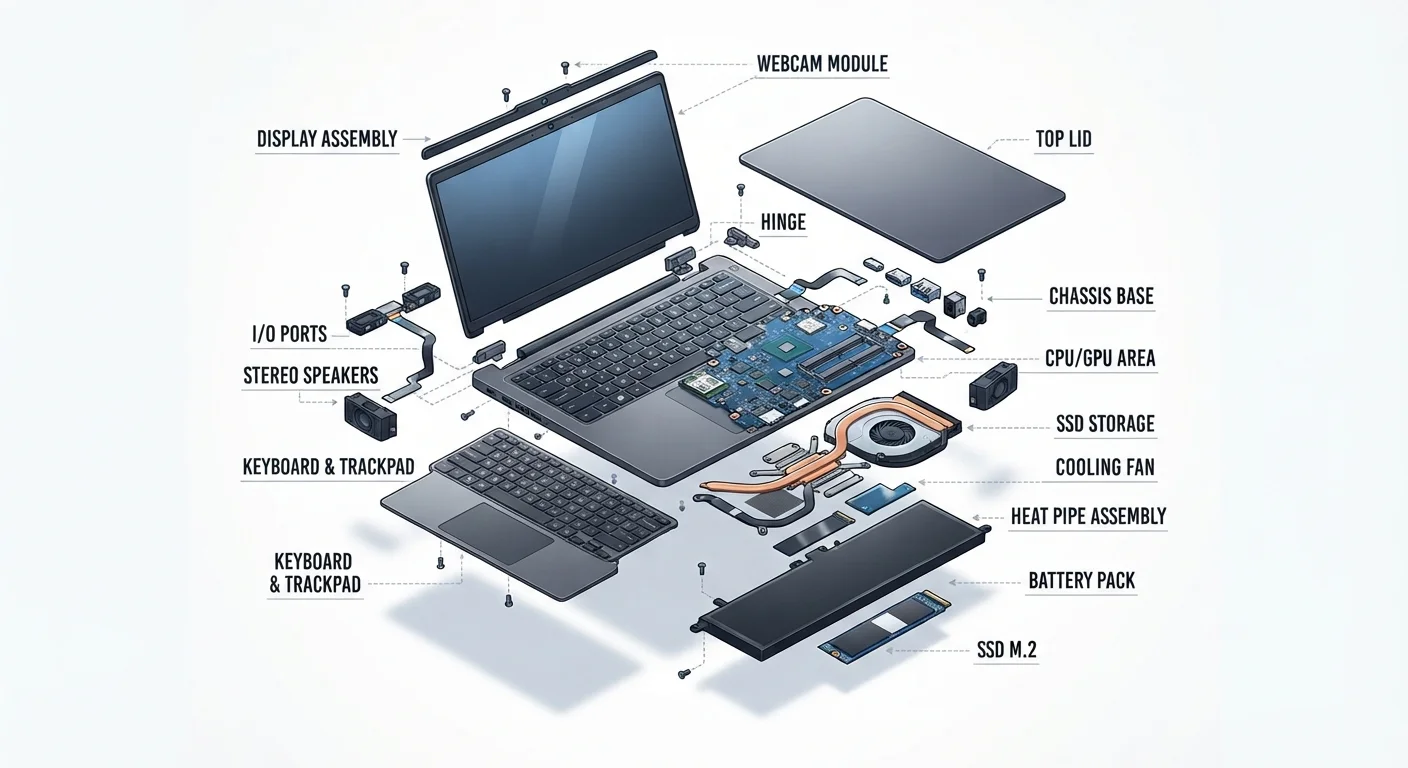
The GPU (Graphics Processing Unit) handles rendering — turning data into the images you see. Most laptops include an integrated GPU built into the same chip as the CPU, sharing system RAM. This is efficient and adequate for everyday work, video streaming, and light photo editing. A dedicated GPU is a separate chip with its own onboard memory (VRAM), designed for workloads that require rendering many pixels at high speed: 3D gaming, video production, machine learning tasks. Dedicated GPUs add cost, weight, and power draw.
The battery is rated in watt-hours (Wh) — a more honest indicator of capacity than the manufacturer's estimated runtime, which varies based on screen brightness, workload, and software optimization. A 72 Wh battery will generally outlast a 45 Wh battery under equivalent conditions, all else being equal.
The motherboard is the circuit board connecting every component listed above. It also houses the Wi-Fi and Bluetooth chips, which determine wireless standards supported (Wi-Fi 6E, for example, supports faster speeds on less-congested radio bands than Wi-Fi 5). Ports — USB-A, USB-C, Thunderbolt, HDMI — are physically mounted on the motherboard or connected to it, which is why port selection is partly a motherboard decision, not a superficial afterthought.
Together, these components form the machine you're evaluating. Knowing what each one does makes spec comparison a practical skill rather than a guessing exercise. For software-level context on how the hardware you've just learned about gets used day to day, the Software & Apps hub is a useful next stop.
Frequently Asked Questions
It depends on your use. For general productivity, RAM and CPU matter most. For creative or gaming workloads, the GPU becomes equally important. There is no single universal answer — your workflow determines what to prioritize.
For everyday tasks like web browsing, email, and documents, 8 GB is functional but 16 GB gives more breathing room. If you use video editing software, run virtual machines, or keep dozens of browser tabs open, 16–32 GB is more practical.
An SSD (solid-state drive) stores data on flash chips with no moving parts, making it significantly faster and more durable than an HDD (hard disk drive), which uses spinning magnetic platters. Most modern laptops ship with SSDs as a result.
Not necessarily. Clock speed (GHz) measures how many cycles per second a processor completes, but core count, architecture generation, and thermal design also affect real-world speed. A newer processor at lower GHz can outperform an older one at higher GHz.
The GPU (Graphics Processing Unit) renders images and video. Integrated GPUs share system memory and handle everyday tasks fine. Dedicated GPUs have their own memory and are needed for gaming, 3D rendering, and video editing at higher quality settings.
Look at resolution, panel type (IPS tends to offer better color and viewing angles than TN), peak brightness in nits, and color gamut coverage (sRGB or DCI-P3 percentage). These specs together give a more complete picture than resolution alone.
The content on this site is for informational purposes only and is not a substitute for professional advice. Always consult a qualified professional for guidance specific to your situation.