

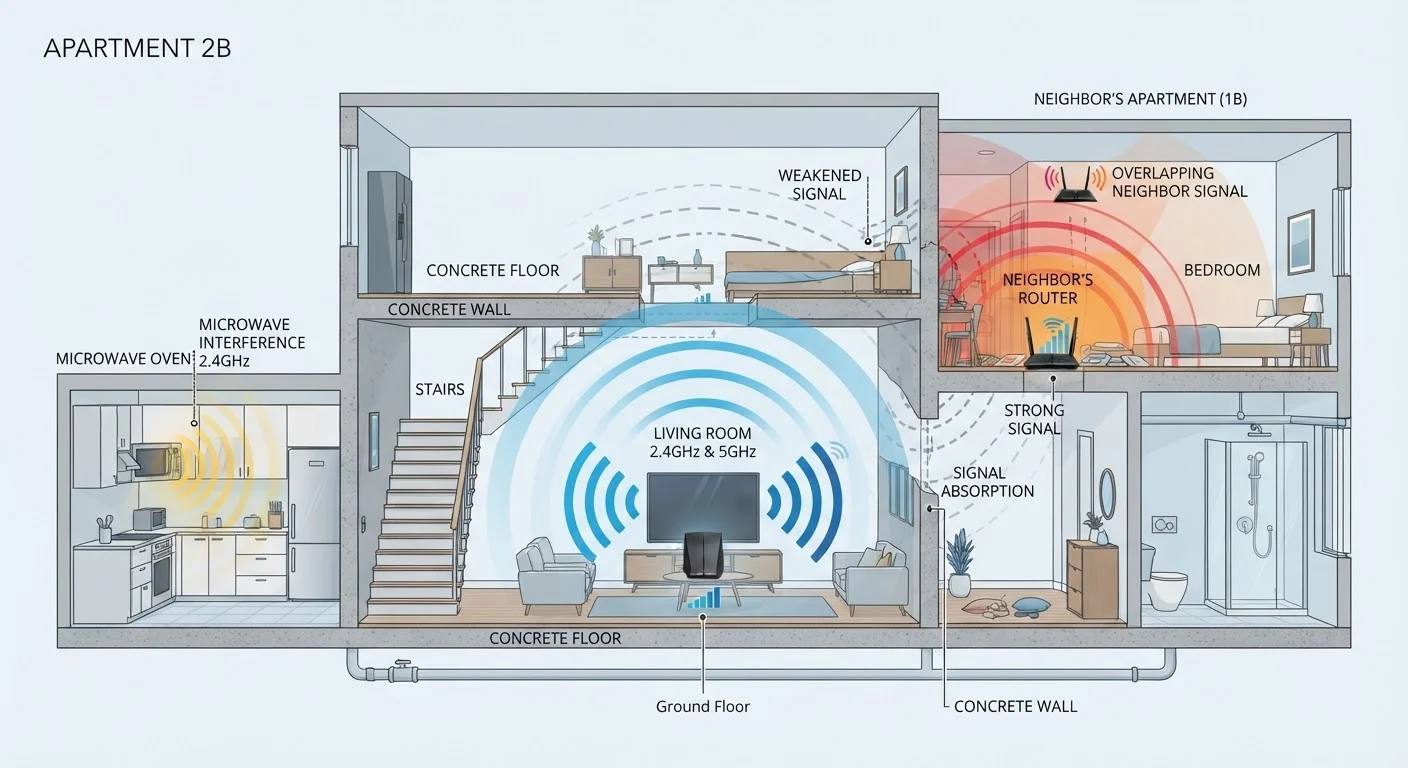
How Wi-Fi Actually Travels Through Your Home
Wi-Fi is radio frequency (RF) energy — invisible waves that travel outward from your router in all directions. Like all radio waves, they weaken with distance through a physical law called the inverse square law: double the distance from your router, and signal power drops to one-quarter of what it was. But distance alone rarely explains the poor signal in your back bedroom or basement office.
What matters just as much is what the signal passes through. Every material a Wi-Fi wave encounters either absorbs some of its energy, reflects it in a new direction, or scatters it. By the time the signal reaches your device, it may have bounced off tile, been partially absorbed by a concrete beam, and arrived from three slightly different paths simultaneously — a phenomenon called multipath interference that can actually cancel out parts of the signal.
Understanding this physical reality is the first step toward diagnosing why your connection drops in certain rooms. For a closer look at how band choice affects range and penetration, see our article on 2.4 GHz vs 5 GHz Wi-Fi.
The Role of Building Materials in Signal Loss
Not all walls are equal barriers. The construction materials in your home have a measurable and often significant effect on how far usable Wi-Fi signal can travel.
- Drywall and wood: Low attenuation. Signal passes through with relatively minor loss — a standard interior partition typically costs 3–5 dB of signal strength.
- Brick and concrete: High attenuation. A solid concrete wall can reduce signal by 10–15 dB per wall, enough to move a device from excellent reception to marginal in a single room transition.
- Metal: Near-total reflection. Steel-reinforced floors, metal wall studs, and foil-backed insulation act more like mirrors than sponges — they reflect the signal rather than absorbing it, creating dead zones behind them.
- Glass: Surprisingly variable. Plain glass has moderate attenuation, but low-emissivity (Low-E) window coatings contain a thin metallic layer that can reflect Wi-Fi almost as effectively as solid metal.
- Water: A 2.4 GHz absorber. Large aquariums, water-filled walls in older buildings, and even the human body absorb radio energy at these frequencies.
Older homes often have denser construction — lathe-and-plaster rather than drywall, original brick, and cast-iron pipes — all of which compound signal loss in ways that newer construction typically does not. Router placement relative to these barriers matters enormously, as explored in our guide on Wi-Fi placement mistakes.
Quick Test: Identify Your Weak Spots
Walk through your home with a device running a Wi-Fi signal strength app and note where bars drop sharply. Pay attention to transitions through dense walls, past appliance-heavy areas like kitchens, or where multiple floors separate you from the router. Mapping these drop points takes five minutes and gives you a clear picture of where physical attenuation — not your ISP — is the real culprit.
Appliances and Electronics That Cause Interference
Physical barriers explain signal loss from absorption. A separate category of problem is radio frequency interference (RFI) — competing electromagnetic noise from other devices that operates on or near the same frequencies as Wi-Fi.
The most familiar culprit is the microwave oven. Standard household microwaves operate at approximately 2.45 GHz, which sits almost exactly in the 2.4 GHz Wi-Fi band. While federal regulations require shielding, all microwave ovens leak some RF energy during operation — enough to disrupt nearby 2.4 GHz Wi-Fi connections.
Other common sources of interference include:
- Cordless phones using the 2.4 GHz DECT band
- Bluetooth devices, which share the 2.4 GHz spectrum (though modern implementations use frequency-hopping to minimise collision)
- Baby monitors, many of which operate at 2.4 GHz
- Older wireless security cameras using analogue 2.4 GHz transmission
- Fluorescent lighting and some LED drivers, which can emit broad-spectrum electrical noise
The consistent pattern: the 2.4 GHz band is significantly more congested than 5 GHz in most homes. If interference from appliances is a concern, moving latency-sensitive devices to the 5 GHz band is generally effective.
Your Neighbours' Networks and Channel Congestion
Even with no physical barriers between your router and device, your Wi-Fi can slow down because of what your neighbours are broadcasting. This is co-channel interference — a problem unique to shared, unlicensed radio spectrum.
Wi-Fi channels in the 2.4 GHz band are only 20 MHz wide in a 100 MHz total spectrum, and many overlap each other. In practice, only three non-overlapping channels exist (1, 6, and 11). In a dense apartment building, dozens of routers may compete for those three slots. When multiple access points share a channel, they must take turns transmitting — each one waiting for the others to finish. This waiting is called channel contention, and it directly reduces your effective throughput even though your signal strength appears strong.
3
Non-overlapping 2.4 GHz channels available in the U.S.
Of the 11 available 2.4 GHz channels in the U.S., only channels 1, 6, and 11 are non-overlapping, meaning all nearby routers effectively compete for just three slots.
10–15 dB
Typical signal loss through a concrete wall
RF engineering references consistently cite concrete and masonry as among the most attenuating common building materials for Wi-Fi frequencies.
2.45 GHz
Microwave oven operating frequency
Household microwave ovens are designed to operate at approximately 2.45 GHz — nearly identical to the 2.4 GHz Wi-Fi band — making proximity a known interference risk.
The 5 GHz band offers significantly more non-overlapping channels and is used by fewer legacy devices, making it the better choice for congested urban environments. Many modern routers also support band steering, which automatically nudges capable devices toward the less-congested band.
If you suspect neighbour interference, most smartphones and many routers include a Wi-Fi analyser function that shows which channels nearby networks occupy — a useful diagnostic starting point before changing any settings.
What You Can Actually Do About It
Understanding why degradation happens makes the remedies intuitive rather than arbitrary.
Reposition your router to minimise the number of walls — especially dense ones — between the router and your most-used devices. Elevated, central placement in the home almost always outperforms a corner or closet. Our placement guide covers the most common positioning errors in detail.
Choose the right band for each use case. The 2.4 GHz band is better for devices at range or through multiple walls; 5 GHz delivers higher speeds when you're in the same room or one wall away. Understanding the trade-offs between these bands helps you make placement and device assignment decisions deliberately rather than by default.
Change your router's wireless channel if you're experiencing congestion. Most router admin interfaces include an auto-select option that scans for the least-occupied channel — enabling this is a low-effort, high-impact adjustment.
Consider a wired connection for stationary, high-demand devices. A device plugged directly into your router via Ethernet is completely immune to RF interference, physical attenuation, and channel congestion. See our comparison of wired vs wireless connections by room for a practical framework.
For a comprehensive review of your home setup, our home network audit checklist walks through each variable — placement, channel, firmware, and security — in one structured review.
Frequently Asked Questions
Yes, significantly. A single concrete or brick wall can reduce signal strength by 10–15 dB, which translates to a dramatic reduction in usable throughput. Drywall has less impact, but multiple walls compound the effect regardless of material.
Microwave ovens operate at approximately 2.45 GHz — nearly identical to the Wi-Fi 2.4 GHz band. Although microwaves are shielded, they leak enough radio frequency energy to interfere with nearby wireless signals. Switching devices to the 5 GHz band typically eliminates this issue.
Absolutely. If nearby routers are broadcasting on the same or overlapping channel, your router must wait its turn to transmit — a process called channel contention. In dense apartment buildings, this is one of the most common causes of sluggish Wi-Fi that isn't the ISP's fault.
Metal is the most disruptive, effectively reflecting radio waves rather than allowing them to pass. Concrete, brick, and stone are highly absorptive. Water is also a surprisingly strong absorber — large fish tanks or water-filled walls can noticeably degrade signal.
Changing your router's wireless channel — or enabling automatic channel selection — can reduce overlap with neighbouring networks. On the 5 GHz band, there are more non-overlapping channels available, making congestion less likely in dense environments.
Yes. Wi-Fi is a shared medium, so each active device competes for bandwidth on the same channel. Streaming, gaming, and video calling simultaneously across many devices increases contention and can reduce effective speeds for each individual device.
The content on this site is for informational purposes only and is not a substitute for professional advice. Always consult a qualified professional for guidance specific to your situation.