

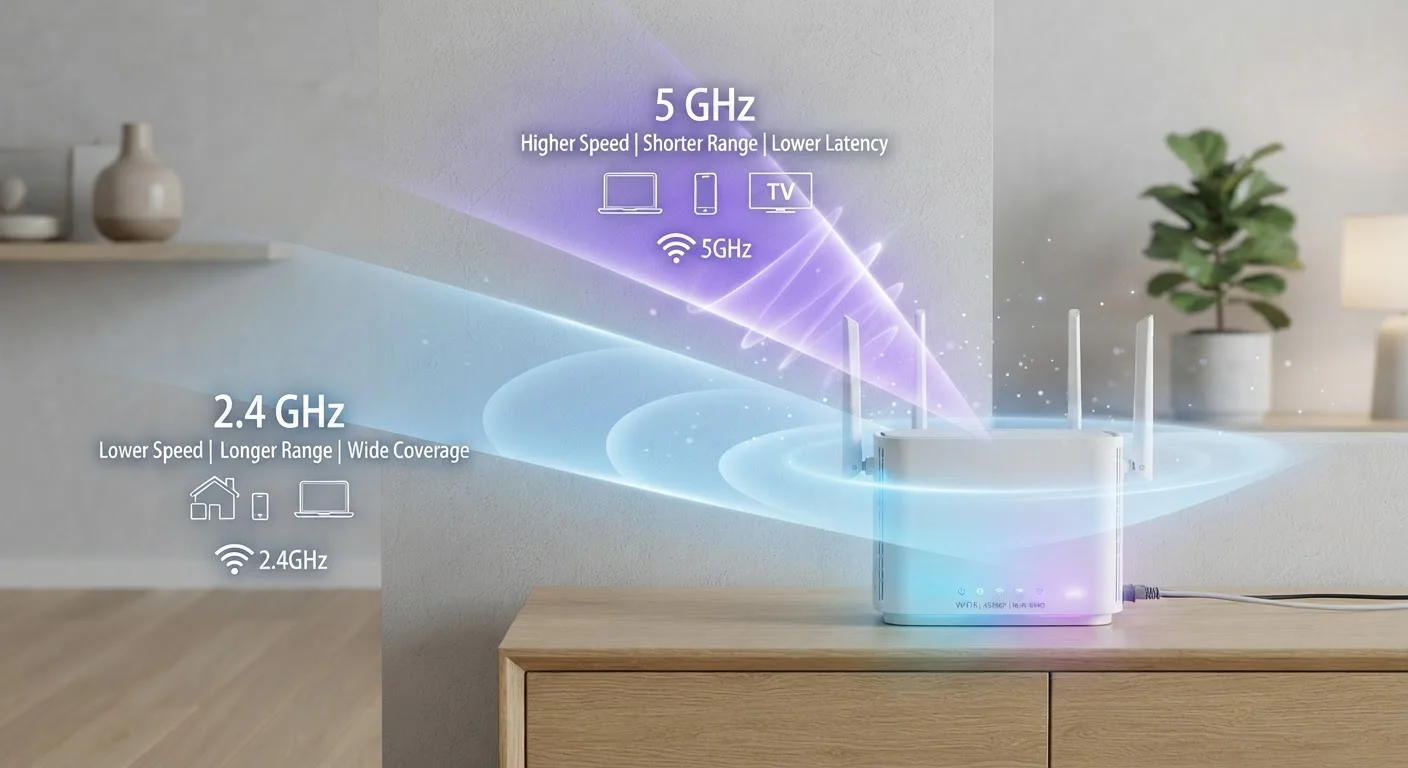
The Frequency Analogy: Think of Lanes on a Highway
When your router broadcasts Wi-Fi, it's transmitting radio waves at a specific frequency. Think of 2.4 GHz and 5 GHz as two different highway lanes: 2.4 GHz is a wide, long road that reaches far but carries traffic slowly; 5 GHz is a shorter expressway with higher speed limits but fewer exits past a certain distance.
The number itself — 2.4 or 5 — refers to gigahertz, a measure of how rapidly the radio wave oscillates per second. Higher frequency waves pack more data into each cycle, which is why 5 GHz can deliver faster speeds. But those shorter, more energetic waves also lose momentum more quickly when they encounter physical barriers like walls, floors, and furniture.
This trade-off is the core of every practical decision you'll make when connecting devices to Wi-Fi. It's not that one band is universally better — each is optimized for different scenarios. For a broader look at how physical environments affect signals, see why walls and appliances degrade Wi-Fi.
3×
More non-overlapping channels in 5 GHz vs. 2.4 GHz
The 2.4 GHz band has only 3 non-overlapping channels in the U.S., while the 5 GHz band offers up to 25, significantly reducing interference between nearby routers.
~150 ft
Approximate 5 GHz indoor range (open space)
5 GHz signals typically reach around 50 meters in ideal open conditions; walls and obstacles reduce this substantially in real home environments.
~300 ft
Approximate 2.4 GHz indoor range (open space)
The 2.4 GHz band roughly doubles the usable indoor range of 5 GHz under comparable open-space conditions, though congestion often limits real-world performance.
2.4 GHz: Range and Compatibility Over Raw Speed
The 2.4 GHz band has been part of Wi-Fi since the earliest standards. Its lower frequency gives radio waves more penetrating power, which means the signal can travel farther and pass through walls with less energy loss. That's why it remains the default for devices that need reliable connectivity across distance rather than raw throughput.
The downside is congestion. Because 2.4 GHz is also used by Bluetooth devices, microwave ovens, cordless phones, and baby monitors, it's a crowded spectrum — especially in apartment buildings where dozens of neighboring routers compete on the same channels. This congestion raises interference and drags down real-world speeds even when signal strength looks healthy.
Devices that work best on 2.4 GHz include smart home sensors, security cameras positioned around the perimeter of a home, e-readers, and anything placed in a basement or far room where signal must penetrate multiple structural layers.
5 GHz: Speed and Clarity Close to the Router
The 5 GHz band offers substantially higher maximum throughput and far less interference than 2.4 GHz. It has more non-overlapping channels, meaning routers can spread traffic out more efficiently and avoid stepping on each other's transmissions — a particular advantage in densely populated neighborhoods.
The practical limitation is range. A 5 GHz signal can drop noticeably when a device moves two or three rooms away from the router, and solid concrete or brick walls can cut the signal significantly. This makes 5 GHz best suited to devices in the same room or adjacent room as the router, especially those performing data-heavy tasks.
Streaming high-definition video, video conferencing, online gaming, and large file transfers all benefit from the lower latency and higher throughput that 5 GHz provides — when the device is close enough to take advantage of it. For a comparison of how wired connections stack up against both bands for demanding tasks, see wired vs. wireless connection tradeoffs.
Matching Devices to the Right Band
Modern dual-band routers broadcast both frequencies simultaneously, often under a single network name (SSID) or two separate ones. When they share a name, the router uses band steering to automatically assign devices — though manual selection gives you more predictable control.
A useful mental framework: ask two questions about each device. First, how far is it from the router? Second, how much data does it move?
- Close to the router + high data demand: laptops streaming 4K, gaming consoles, smart TVs — connect to 5 GHz.
- Far from the router or through walls: smart speakers, IoT sensors, older smartphones — connect to 2.4 GHz.
- Stationary and data-light: smart plugs, thermostats, security sensors — 2.4 GHz is sufficient and often the only option supported.
Router placement itself also matters significantly. Even the best band choice won't compensate for a router tucked in a closet or behind a television — see common Wi-Fi placement mistakes for guidance on positioning.
Label Your Bands Separately for Easier Management
If your router allows it, give your 2.4 GHz and 5 GHz networks different names (e.g., HomeNet_2G and HomeNet_5G). This lets you manually assign devices to the appropriate band without relying on automatic steering, giving you clearer visibility into which devices are connected where. Check your router's admin interface — usually accessible via a browser at 192.168.1.1 or 192.168.0.1 — to configure this.
What About Wi-Fi 6 and the 6 GHz Band?
Newer Wi-Fi standards (Wi-Fi 6 and Wi-Fi 6E) improve efficiency across both existing bands and, in the case of 6E, introduce a 6 GHz band. Wi-Fi 6 doesn't change the fundamental physics of 2.4 GHz vs. 5 GHz — both bands still behave as described above — but it improves how the router handles multiple simultaneous connections through technologies like OFDMA and MU-MIMO.
The 6 GHz band, exclusive to Wi-Fi 6E and Wi-Fi 7 devices, behaves similarly to 5 GHz in terms of range limitations but offers even more spectrum with less congestion, since it's newly allocated and not yet crowded. Compatibility requires both the router and client device to support the standard, so it remains irrelevant for most legacy smart home hardware.
For context on how wireless generations evolve more broadly, mobile data generations explained covers how incremental standards updates translate to real-world changes. Once you understand the bands, the next step is securing your network — a practical home Wi-Fi security walkthrough covers the key configuration steps.
Frequently Asked Questions
It depends on where your device is and what you're doing. Use 5 GHz when you're near the router and want fast speeds for streaming or gaming. Switch to 2.4 GHz when you're farther away or separated by multiple walls, since it maintains a more stable signal at distance.
5 GHz is capable of higher data throughput, but only when the device is close enough to the router to maintain a strong signal. At longer ranges or through thick walls, 5 GHz signal weakens and can actually perform worse than 2.4 GHz.
Individual devices connect to one band at a time, but different devices in your home can each connect to whichever band suits them. A dual-band router broadcasts both simultaneously, letting you distribute devices between them.
The 2.4 GHz spectrum is shared by many technologies including Bluetooth, baby monitors, and microwave ovens, creating significant congestion in densely populated areas. The 5 GHz band has more available channels and is used by fewer competing devices.
A tri-band router adds a second 5 GHz band (or a 6 GHz band in newer Wi-Fi 6E models) to the standard dual-band setup. This increases total capacity, which is useful in households with many simultaneously connected devices.
Most smart home devices — thermostats, light bulbs, sensors — use 2.4 GHz because they transmit small amounts of data and benefit from the wider range. Connecting them to 5 GHz is unnecessary and some older smart devices don't support it at all.
The content on this site is for informational purposes only and is not a substitute for professional advice. Always consult a qualified professional for guidance specific to your situation.