

Start here
How the Internet Enters Your Home
Next
What Your Router Actually Does
Then
Wired vs. Wireless: Choosing Your Connection Type
Going deeper
IP Addresses and Why Every Device Needs One
Before you finish
Network Security Basics You Shouldn't Skip
How the Internet Enters Your Home
Before any device in your home can load a webpage, a physical signal has to travel from your internet service provider (ISP) to your front door — literally. That signal arrives over one of several media: a coaxial cable (common with cable internet), a fiber-optic line, a copper telephone line (DSL), or in some areas, a fixed wireless antenna on your roof.
Whatever the physical medium, the signal terminates at a modem. The modem's job is translation: it converts the ISP's proprietary signal format into standard digital data that networking equipment can understand. Think of it as the border checkpoint between your ISP's infrastructure and your private home network.
Most households today receive a combined gateway device from their ISP — a single box that contains both the modem and a router. While convenient, these combo units often have limited configuration options compared to standalone hardware. Understanding that these are two logically separate functions helps you troubleshoot problems and evaluate your options later.
Modem
A device that connects your home to your internet service provider by translating their signal into standard digital data your home network can use.
Router
A device that manages traffic between your home network and the internet, and creates the local network that lets your devices communicate with each other.
IP Address
A unique numerical label assigned to every device on a network so that data can be directed to the correct destination.
DHCP
A protocol your router uses to automatically assign IP addresses to devices when they join the network, so you don't have to configure each one manually.
NAT (Network Address Translation)
A function that allows all devices in your home to share a single public IP address when communicating with the internet, while keeping their private addresses hidden.
Wi-Fi Band
A frequency range over which wireless data is transmitted. Common bands are 2.4 GHz (longer range, slower) and 5 GHz (shorter range, faster).
Firmware
The built-in software that runs on your router. Keeping it updated patches security vulnerabilities and can improve performance.
LAN (Local Area Network)
The private network inside your home that your router creates, allowing your devices to communicate with each other independently of the internet.
What Your Router Actually Does
Once the modem has bridged the gap between your ISP and your home, the router takes over. Its primary role is traffic management: it receives data from the internet, figures out which device requested it, and sends it to the right destination — all in milliseconds, thousands of times per minute.
The router also creates your local area network (LAN) — a private bubble of connectivity that exists inside your home, separate from the public internet. Devices within that bubble can communicate with each other (your laptop talking to your printer, for example) without that traffic ever leaving your home.
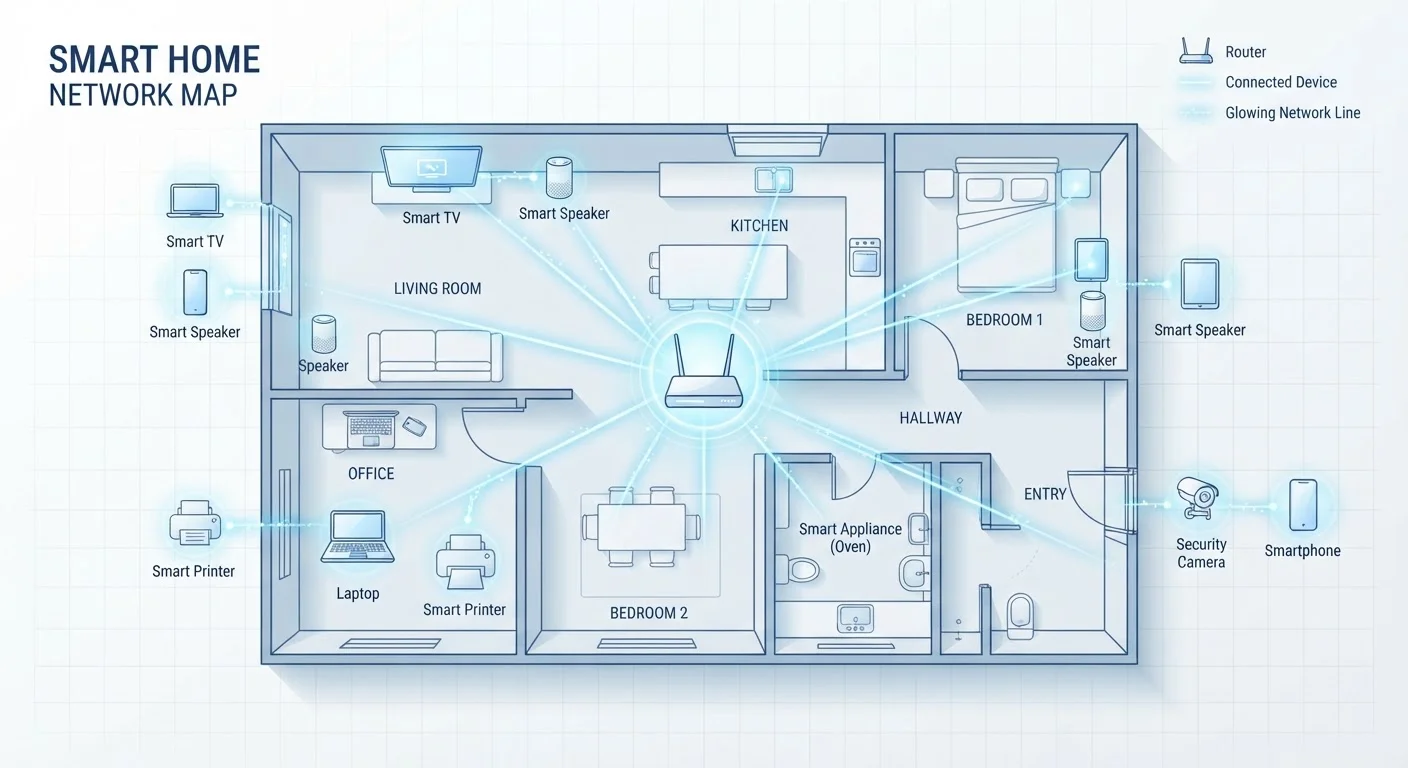
Most routers also broadcast a Wi-Fi signal, acting as a wireless access point. The router's physical placement matters considerably: a router tucked in a basement corner will serve devices on the ground floor far less effectively than one placed at the home's center. For larger spaces with coverage gaps, a mesh system distributes the load across multiple nodes — see our guide on mesh networks vs. traditional routers for a detailed comparison.
Wired vs. Wireless: Choosing Your Connection Type
Your router typically offers two ways for devices to connect: Ethernet (wired) and Wi-Fi (wireless). The choice carries real-world consequences for speed, stability, and latency.
A wired Ethernet connection runs a physical cable between a device and the router (or a network switch). It delivers consistent speeds, near-zero interference, and lower latency — advantages that matter for video calls, online gaming, or streaming in high resolution. Desktop computers, smart TVs, and gaming consoles near the router are strong candidates for a wired connection.
Wi-Fi eliminates the cable at the cost of some performance variability. Consumer routers broadcast on two main frequency bands:
- 2.4 GHz: Slower maximum speeds, but longer range and better wall penetration. Suitable for smart home sensors, voice assistants, and devices far from the router.
- 5 GHz: Faster throughput and less congestion from neighboring networks, but shorter effective range. Best for laptops, tablets, and phones used near the router.
Newer routers also support a 6 GHz band (Wi-Fi 6E), which offers even higher speeds in less congested spectrum — though device support is still expanding. If you have devices across all categories, understanding how different devices connect helps you make smarter placement decisions.
Place Your Router Where Devices Are Densest
Wi-Fi signal radiates outward in all directions, so a router placed at the edge of your home wastes half its range pushing signal outside. Aim for a central, elevated location — a shelf in a central hallway or living room works better than a closet or corner. Keep it away from microwaves and cordless phone bases, which can interfere with the 2.4 GHz band.
IP Addresses and Why Every Device Needs One
Every device that joins your network — phone, laptop, smart bulb — needs a unique identifier so the router knows where to send data. That identifier is an IP address. Your router automatically assigns these using a protocol called DHCP (Dynamic Host Configuration Protocol), which hands out addresses from a pool each time a device connects.
Your home network uses private IP addresses (typically in ranges like 192.168.x.x or 10.0.x.x) that are invisible to the outside internet. Your router presents a single public IP address to the internet on behalf of all devices — a function called NAT (Network Address Translation). This is why websites see one address for your entire household, not one per device.
Understanding this two-layer structure also clarifies why smart home devices need careful network planning — each adds to your router's management workload. Our explainer on smart home hubs, bridges, and protocols covers how these devices communicate beyond basic IP networking.
Network Security Basics You Shouldn't Skip
Your router is the single point through which all home internet traffic flows — which makes it a meaningful security boundary. A few foundational practices significantly reduce exposure:
- Change the default admin credentials. Routers ship with generic usernames and passwords (often printed on the device). These are publicly documented and easy to exploit. Set a unique, strong password for the admin interface.
- Use WPA3 or WPA2 encryption. These are the current Wi-Fi security standards. Older protocols like WEP are effectively broken and should be avoided if your router still offers them as options.
- Keep firmware updated. Router manufacturers periodically release firmware patches to fix security vulnerabilities. Check your router's admin panel for an update option, or enable automatic updates if available.
- Create a guest network. A separate guest Wi-Fi keeps visitors — and their devices — off your main network where personal devices and smart home gear live.
Once you understand how your network is structured, securing it is a logical next step. Our practical walkthrough for securing home Wi-Fi takes you through each configuration step in detail. If you want to assess your current setup, the home network audit checklist provides a structured way to find weak spots.
Frequently Asked Questions
A modem connects your home to your internet service provider's network, translating their signal into data your devices can use. A router takes that connection and distributes it to all your devices, either through cables or Wi-Fi. Many ISPs supply a single combo unit that handles both functions.
Wi-Fi signal weakens with distance and is blocked or scattered by walls, floors, and dense materials like concrete or brick. The further a device is from the router, the weaker the signal. Repositioning your router to a central location or considering a mesh system can help extend coverage.
Your router has two IP addresses: a public one that identifies your home network to the internet, and a private one (often 192.168.1.1) used to access its admin settings from within your home. The private address lets you log in to change Wi-Fi names, passwords, and other configuration options.
Most consumer routers can handle 20–50 simultaneous connections, though performance degrades as the count rises. The practical limit depends more on available bandwidth than device count — a household streaming video on multiple devices will feel congestion sooner than one with mostly idle smart home sensors.
Neither band is universally better — they suit different situations. The 2.4 GHz band travels farther and penetrates walls more easily but tops out at lower speeds. The 5 GHz band delivers faster throughput but loses strength over distance. Connect speed-sensitive devices close to the router on 5 GHz, and use 2.4 GHz for distant or lower-demand devices.
Combo modem-router units (often called gateways) are convenient and reduce cable clutter, and they work well for most households. Separate devices give you more flexibility — you can upgrade just the router without changing the modem, or use a higher-performance router than the ISP-supplied unit.
The content on this site is for informational purposes only and is not a substitute for professional advice. Always consult a qualified professional for guidance specific to your situation.